إشعارات ترويجية مجانية
لعروض مطعمك ضمن خطة الإطلاق.

للمطاعم والمقاهي والمخابز
منتجاتك الطازجة تستاهل تنباع.
حوّل فائض اليوم إلى دخل إضافي مع كنز، وخلّ كل منتج له قيمة.
مخبوزات، حلا، ووجبات طازجة لم تُبع — لم تُقدّم للعملاء وليست بقايا أطباق.
تسجيل مجاني · أنت تحدد السعر والكمية ووقت الاستلام
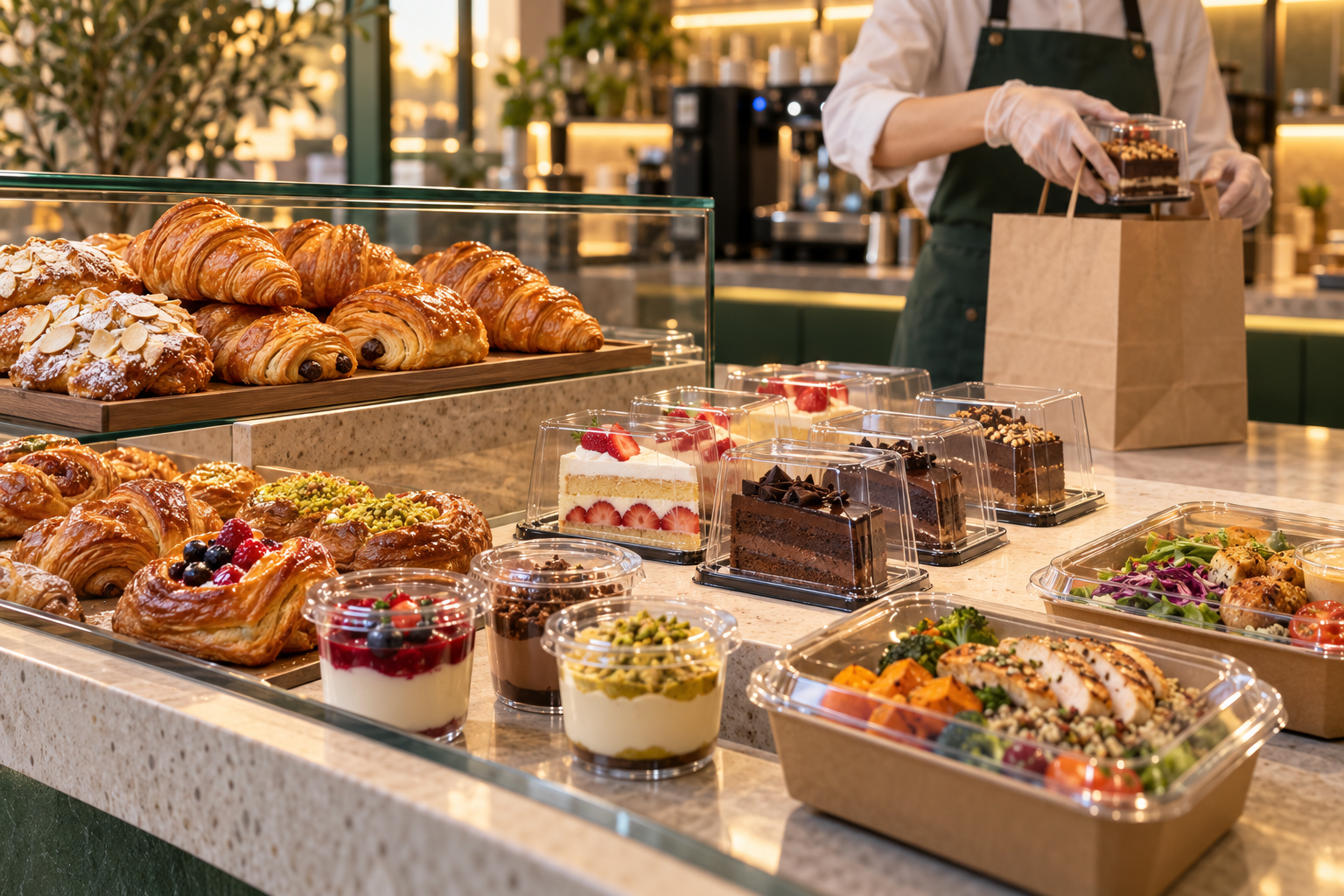 طازج اليوم. باقي له فرصة.
والعميل يستلم من مطعمك مباشرة
باقة شركاء كنز الأوائل
عرض انضمام مبكر يمنح مطعمك دعمًا خلال انطلاقة كنز.
لعروض مطعمك ضمن خطة الإطلاق.
ضمن المساحات التسويقية المتاحة.
منشور أو فيديو تعريفي على حسابات كنز.
إدراج مطعمك في حملات كنز دون رسوم إعلانية إضافية.
باقة مخصصة لأول ٥٠ مطعم ينضم إلى كنز.
ليش تضيف كنز؟
كنز يصنع سوقًا للاكتشاف: عروض ومفاجآت متجددة، وفرص متعددة تبدأ بالمطاعم وتمتد لقطاعات أخرى. ولمطعمك، فرصة يتعرّف فيها العميل القريب عليك ويجرّب ما تقدّمه.
| وجه المقارنة | تطبيق متخصص في فائض الطعام | كنز · باب بيع جديد |
|---|---|---|
| الفكرة | الاستفادة من الطعام غير المباع | باب بيع إضافي قائم على اكتشاف الفرص |
| سبب زيارة العميل | البحث عن وجبة بسعر أقل | اكتشاف عرض، تجربة، أو مفاجأة جديدة |
| نطاق السوق | التركيز على الطعام | رؤية لسوق متعدد الاستخدامات، يبدأ بالمطاعم |
| التعريف بمطعمك | عرض الوجبات المتاحة | استهداف محلي مباشر ضمن خطة الإطلاق، يعرّف العملاء القريبين بمطعمك وعروضك |
| فرصة البداية | المزايا بحسب المنصة | باقة إطلاق مخصصة لأول ٥٠ مطعم |
عمولة ٠٪ خلال فترة الإطلاق، إشعارات ترويجية مجانية، أولوية ظهور داخل التطبيق، محتوى ترحيبي لمطعمك، وإدراج في حملات كنز لمدة ٩٠ يومًا دون رسوم إعلانية إضافية.
تُحدّد مدة إعفاء العمولة النهائية عند الانضمام. التوسع لقطاعات أخرى ضمن رؤية كنز المستقبلية. المقارنة توضّح اختلاف التوجّه، وقد تختلف خصائص التطبيقات الأخرى.
بسيطة من أول يوم
حمّل تطبيق المطاعم وأضف بيانات منشأتك وهويتها.
اختر منتجاتك الطازجة، وحدّد الكمية والسعر ووقت الاستلام.
العميل يستلم من مطعمك، وأنت تتابع الحجوزات والمحفظة.
شوف قيمة الفرصة
جرّب الأرقام حسب مطعمك.
تقدير توضيحي لـ٣٠ يومًا، قبل أي عمولات أو تكاليف. يعتمد على بيع كامل الكمية يوميًا ولا يضمن دخلًا محددًا.
فرصة مطعمك تبدأ هنا
تطبيق كنز للمطاعم
حمّل تطبيق التاجر، سجّل منشأتك، وابدأ بإعداد عروضك اليومية.
افتح هذه الصفحة من جوالك ليُفتح المتجر المناسب تلقائيًا، أو اختر متجرك أدناه.
التسجيل مجاني. تحتاج مساعدة في إعداد حسابك؟
info@knz-app.com